How to Start Trading on MegaTAO
Welcome to MegaTAO! This guide will walk you through everything you need to know to start trading perpetual futures on Alpha tokens.
Prerequisites
- Talisman wallet (or another compatible EVM wallet)
- TAO tokens for collateral (you can deposit any amount to start)
- The Bittensor EVM network added to your wallet (chain ID: 964)
Step 1: Configure Your Wallet
Before connecting to MegaTAO, you need to add the Bittensor EVM network to your wallet. Use these exact parameters:
Network Configuration:
- Network Name: Bittensor EVM
- RPC URL: https://lite.chain.opentensor.ai
- Chain ID: 964
- Currency Symbol: TAO
- Block Explorer: https://evm.taostats.io/
Talisman Setup
- Open Talisman and navigate to the network settings
- Click "Add Network" or "Custom Network"
- Enter the network parameters listed above
- Click "Save" to add the network
- Select "Bittensor EVM" from the network selector
Connect to MegaTAO
Once your wallet is configured, click the "Connect Wallet" button in the top right corner of the MegaTAO interface. Select your wallet and approve the connection. Verify that you're connected to the Bittensor EVM network (Chain ID: 964).
Step 2: Understanding SS58 and EVM Addresses
Bittensor runs a Substrate-based blockchain (Subtensor) that supports both Substrate-style SS58 addresses and an EVM compatibility layer using 0x (H160) addresses. MegaTAO is built on the Bittensor EVM, so you need TAO in an EVM (0x) address to trade.
Important: You Need TAO on the EVM Layer
If your TAO is held in a Substrate SS58 address (format like 5Gbk2vcvDpegZ4dzHD8oLhNrWwaiNKzwTR3XKfWeXLbjKR24), you need to find its corresponding EVM (H160/0x) address and have access to that account in an EVM wallet before you can trade on MegaTAO.
How to Move Funds to Your EVM Account
To move TAO from a Substrate SS58 address to your corresponding EVM H160 address:
- Connect your EVM wallet to the MegaTAO app (make sure you're on the Bittensor EVM network, Chain ID: 964)
- In the app, click the button that displays your SS58 address (this is the Substrate address corresponding to your connected EVM H160 address)
- Copy the SS58 address shown
- From your Substrate wallet, send TAO to that SS58 address on the Subtensor network
- The transfer is automatically detected and equivalent TAO is made available on the EVM compatibility layer
- Your TAO will appear in your EVM wallet within 1-2 minutes
- Verify your balance in your wallet connected to Bittensor EVM (Chain ID: 964)

Note: Each EVM H160 (0x) address has a corresponding Substrate SS58 address derived from the same account. When you send TAO to the SS58 address, it becomes available at the corresponding EVM address on the compatibility layer.
Step 3: Deposit TAO
Once you have TAO in your EVM address, you can deposit it as collateral. Navigate to the Margin section and click "Deposit". Enter the amount of TAO you want to deposit and confirm the transaction. Your deposited TAO will be available as margin for trading.
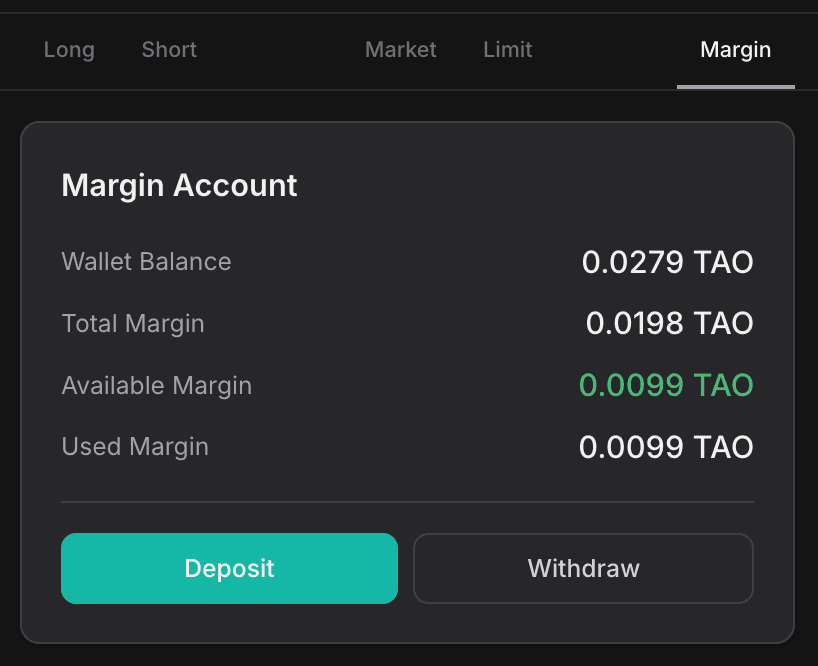
Note: During beta, there may be deposit limits in place. These will be relaxed as the protocol matures.
Step 4: Select a Market
Choose from the available Alpha token markets. MegaTAO currently supports the top 12 Bittensor subnets by emission. Each market shows real-time price data, 24h volume, and funding rates.
Step 5: Open Your First Position
Once you've selected a market, you can open a position:
- Choose your direction: Long (betting price goes up) or Short (betting price goes down)
- Enter your collateral amount (in TAO)
- Select your leverage (up to 5x)
- Choose between Market order (instant execution) or Limit order (executes at your specified price)
- Review the position details and click "Open Position"
Step 6: Manage Your Position
After opening a position, you can:
- Monitor your profit/loss in real-time
- Add or remove margin to adjust your position
- Set take-profit or stop-loss orders
- Close your position partially or fully at any time
Important Considerations
Funding Rates
Funding rates are calculated dynamically and accumulate continuously based on how long you hold your position. If you're on the paying side, this will reduce your profits or increase your losses over time.
Liquidation Risk
If your margin ratio falls below 20%, your position will be automatically liquidated with a 5% penalty. Always monitor your margin ratio and consider adding more margin if it gets too low.
Trading Fees
Each trade (open and close) incurs a 0.25% trading fee. Factor this into your profit calculations.
Getting Help
If you have questions or need assistance:
- Join our Discord community
- Follow us on Twitter
- Check out our documentation
⚠️ Risk Warning
Leveraged trading involves significant risk. You can lose your entire investment. Only trade with capital you can afford to lose completely.